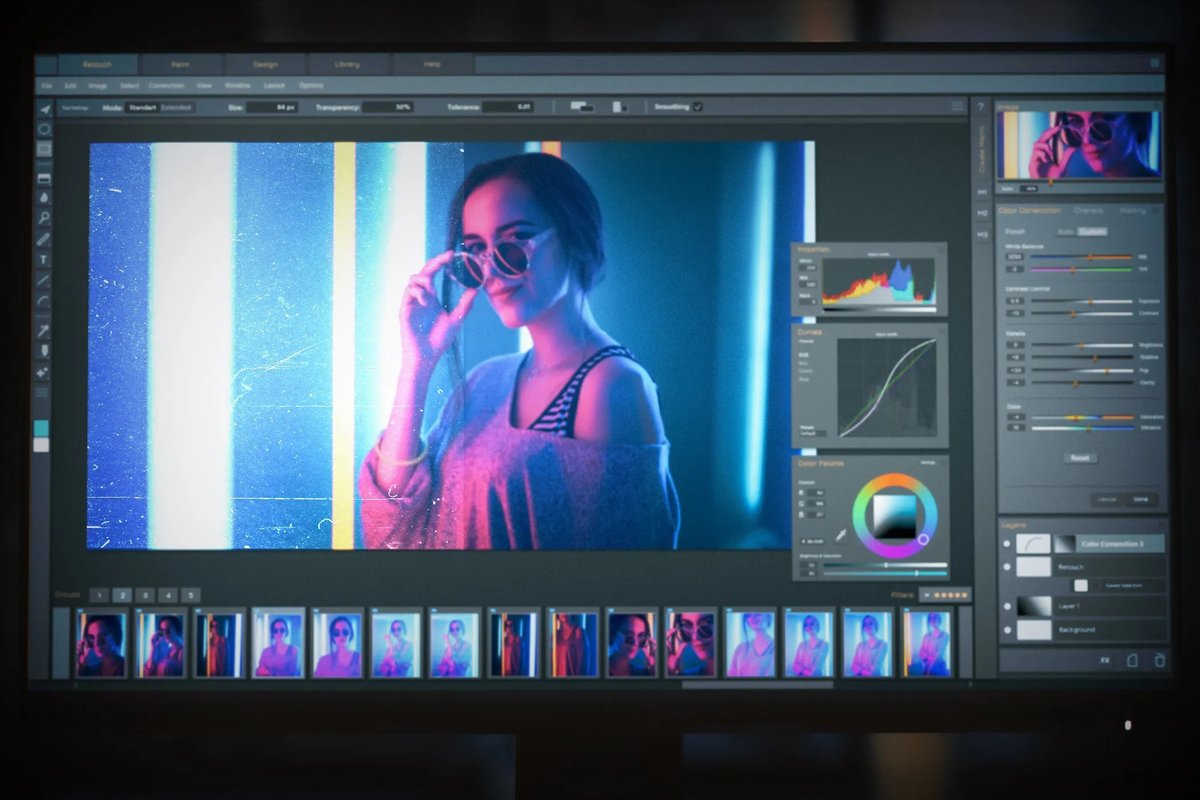
In today's lightning-fast digital world, your most powerful content studio isn't tucked away in a dimly lit office—it's right there in your pocket. Mobile Editing & Quick Edits have completely revolutionized how we create, refine, and share content, turning smartphones and tablets into indispensable tools for everyone from aspiring creators to seasoned marketing professionals. Gone are the days of needing expensive desktop rigs and complex software to produce polished visuals; now, speed, flexibility, and professional quality are literally at your fingertips.
This guide will walk you through the landscape of mobile editing, showing you how to harness its power for rapid content turnaround, platform-optimized delivery, and a creative workflow that truly moves at the speed of thought.
At a Glance: Your Pocket Studio Power-Up
- Unleash Speed: Create and publish high-quality content faster than ever, perfect for social media and agile marketing campaigns.
- Optimize for Any Platform: Easily format videos and photos for TikTok, Reels, Shorts, YouTube, and more, directly from your device.
- Affordable Entry: Access powerful editing tools often for free or at a low cost, democratizing content creation.
- AI Takes the Wheel: Leverage intelligent automation for captions, transitions, and effects, streamlining complex tasks.
- Go Pro, Anywhere: Advanced apps offer desktop-level features like multi-track editing, color grading, and keyframing on the go.
- Cloud-Connected Workflow: Sync projects across devices, collaborate seamlessly, and edit from virtually anywhere with internet access.
The Rise of the Pocket Studio: Why Mobile Editing Matters More Than Ever
Think about your daily digital consumption. Chances are, a significant portion of it happens on a mobile device. This mobile-first audience demands mobile-first content—snappy, visually engaging, and perfectly optimized for viewing on smaller screens. This seismic shift is precisely why mobile editing isn't just a convenience; it's a strategic imperative.
For businesses, creators, and anyone looking to make an impact, mobile editing means:
- Faster Content Turnaround: From capturing an event to sharing it on social media, the entire workflow can happen within minutes. This agility is crucial for trending topics, real-time marketing, and staying relevant in a constantly evolving feed.
- Platform-Optimized Formats Built-In: The best mobile apps understand that a TikTok video isn't the same as a YouTube short or an Instagram Reel. They come packed with presets, aspect ratio tools, and export options specifically tailored for each platform, saving you precious time and ensuring your content looks its best, every time.
- Reduced Reliance on Desktop Hardware: No need for a powerful, expensive computer or being tethered to a desk. Your smartphone or tablet becomes your all-in-one production hub, freeing you to create from a cafe, on location, or even from your couch.
- AI-Assisted Magic: Many modern mobile editing tools integrate artificial intelligence to simplify complex tasks. Think auto-captions, intelligent cut detection, automated background music syncing, and even stylistic effects that used to require hours of manual work.
- Cloud-Based Portability: Start a project on your phone during your commute, pick it up on your tablet during lunch, and make final tweaks on a desktop if needed. Cloud sync ensures your work is always up-to-date and accessible across devices, enhancing collaborative workflows and personal productivity.
- Lower Barrier to Entry: Many highly capable mobile editing apps are free or offer very affordable subscription models, significantly lowering the financial hurdle for aspiring creators and small businesses to produce high-quality content.
Beyond Convenience: What Mobile Editing Delivers
It’s easy to dismiss mobile editing as merely "convenient," but that undersells its true capabilities. Today's apps are sophisticated, offering a suite of features that rival (and sometimes even surpass, for specific tasks) traditional desktop software.
Precision Meets Agility for Video
When it comes to video, mobile apps are no longer just for basic cuts. They offer:
- Multi-Track Editing: Layer video clips, images, text, and audio tracks to build complex scenes.
- Advanced Transitions & Effects: From cinematic wipes to glitch effects and animated stickers, you have a vast library at your disposal.
- Color Grading: Fine-tune your footage with color presets, manual adjustments, and even professional-grade LUTs (Look-Up Tables).
- Audio Control: Adjust volumes, add sound effects, integrate royalty-free music, and even perform voiceovers with ease.
- Speed Ramping & Reverse: Manipulate the pacing of your video for dramatic effect or playful twists.
- Chroma Key (Green Screen): Remove backgrounds to place your subjects anywhere imaginable.
Polished Visuals for Photos
Photo editing on mobile has also evolved dramatically, offering tools that cater to both quick fixes and detailed adjustments:
- RAW File Support: For serious photographers, the ability to edit RAW files means preserving maximum image data for superior quality.
- Selective Adjustments: Target specific areas of your photo (e.g., brighten only the eyes, desaturate the background) with brushes and gradients.
- Presets & Filters: Apply professional looks with a single tap, or create and save your own custom styles.
- Healing & Retouching: Remove blemishes, clean up distractions, and subtly enhance portraits.
- Non-Destructive Editing: Experiment freely, knowing you can always revert to your original image.
The sheer power packed into these portable tools transforms your device into a portable studio, ready to capture, create, and share your vision without missing a beat.
Picking Your Powerhouse: Navigating Mobile Video Editing Apps
The market for mobile video editing apps is robust, offering options for every skill level and specific need. Here's a breakdown of the top contenders:
Best Overall & Professional-Grade Options
- Adobe Premiere Rush: Think of Rush as the accessible, streamlined sibling to Adobe Premiere Pro. It's fantastic for creators who need a strong editing experience with the flexibility to sync projects between mobile and desktop. You get filters, effects, transitions, customizable titles, extensive audio tools (SFX, loops, music), color presets, and even time remapping for precise speed control. If you're already in the Adobe ecosystem, Rush is a no-brainer.
- LumaFusion (iOS): This app is often hailed as the "desktop-class editor" for Apple devices. Designed for professionals, LumaFusion offers comprehensive features like full HDR support, a customizable UI, precision editing with trimming, reordering, titles, transitions, and advanced color grading via LUTs. Its robust features extend to motion tracking, keyframing, masking, and detailed audio track editing, making it ideal for serious filmmakers and videographers. It’s a one-time purchase, often with optional feature packs.
- DaVinci Resolve (iPad): Bringing the industry-standard desktop software to the iPad, DaVinci Resolve offers an unparalleled experience for advanced workflows. It excels in professional-grade editing, color grading, and post-production, closely mirroring its desktop counterpart. This is a game-changer for professional iPad users who demand the highest quality and control. It's available as a free app with an optional Studio upgrade.
Best for General Use & Advanced Features
- PowerDirector: This app strikes an excellent balance between ease of use and advanced capabilities. It supports a wide range of formats and resolutions, including 4K export. PowerDirector offers guided workflows for beginners but provides plenty of manual controls for more experienced editors. It's a solid all-rounder, available with a free tier and a subscription for full access.
- KineMaster: If you're an advanced editor seeking powerful tools without an upfront cost, KineMaster is a strong contender. It delivers desktop-level features such as precise trimming, panning/zooming, video reversing, speed adjustments, vignetting, multi-layer editing, overlays (text, stickers), color filters, opacity controls, and even a chroma key tool for professional green screen work.
Social Media Powerhouses & Quick Edits
- CapCut: Wildly popular among social creators, CapCut prioritizes speed and viral trends. Its interface is designed for quick results, packed with presets, effects, and AI features like auto captions that drastically reduce editing time. It includes timeline-based editing, a massive music/sound effects library, and multi-platform export. CapCut uses a freemium model, offering paid plans for advanced features and collaboration.
- InShot: The go-to for many social media users needing quick, impactful edits. InShot focuses on speed and simplicity for short-form content. Features include a vast array of fonts, filters, animated stickers, editable text, sound effects, and the crucial ability to convert and resize videos specifically for various social media platforms (Instagram, Whatsapp, YouTube, Facebook Stories). It operates on a freemium model with a paid Pro subscription.
- Splice: Ideal for beginners and those who need to quickly "splice" together clips. Splice delivers a streamlined experience with simple trimming, basic transitions, effects, video filters, music/sound effects, and even background removal. Its strength lies in its intuitive design and easy sharing options for platforms like Instagram and Facebook.
Brand-Specific & Beginner-Friendly Options
- iMovie (iOS): The best free video editing app for Apple users. iMovie is an entry-level editor for iPhones and iPads, offering an incredibly easy-to-use interface. It features AI-powered "Magic Movie" for instant results or "Movie mode" for more hands-on control, along with timeline editing, titles, text, and music. If you have an iPhone 13 or higher, it even supports Cinematic settings and Speed options.
- GoPro Quik: As its name suggests, this is the best app for GoPro users, but it's also great for automatically generating highlight reels from any content on your phone's camera roll or even DSLRs. It smartly analyzes your footage to create engaging edits, offering filters, royalty-free music, titles, and basic editing. The free version provides solid functionality, with upgrades unlocking more advanced features.
- FilmoraGo: Best for casual users across both iOS and Android, FilmoraGo brings many core features from Filmora's popular desktop software to mobile. It offers a "Templates mode" for beginners (pre-made elements for quick projects) and a "Project mode" for more detailed editing, including trimming, cropping, rotation, and adding music/sound effects. It’s a very approachable option for those new to mobile video editing.
Mastering Visuals: Top Mobile Photo Editing Apps
While video often steals the spotlight, mobile photo editing is equally critical for creators looking to maintain a cohesive and professional visual brand.
The Professional's Choice
- Adobe Lightroom: This is the gold standard for professional photography on mobile. Lightroom allows for powerful RAW photo editing, offers a vast library of presets, enables precise selective adjustments, and ensures seamless cloud synchronization across all your devices. For anyone serious about photography, it's an indispensable tool, available through subscription plans.
Best for Free, Powerful Edits
- Snapseed: A powerhouse for free photo edits, Snapseed is a Google-owned app that provides advanced photo adjustments, RAW file support, and powerful healing and retouch tools. It offers a range of preset filters and, crucially, non-destructive editing, meaning you can always revert your changes. The best part? It's completely free with no hidden costs or paid tiers.
Tailoring Your Toolkit: Choosing the Right App for Your Needs
With such a diverse array of options, selecting the perfect mobile editing tool can feel daunting. The key is to align your choice with your specific content creation and publishing needs.
Consider these critical factors:
- Your Primary Goal: Speed vs. Precision?
- Quick Edits, Social-First: If your priority is rapid content creation for platforms like TikTok or Instagram Reels, apps like CapCut, InShot, or Splice will serve you best. They're designed for speed and trending effects.
- Detailed, Professional Projects: For more complex storytelling, higher production value, or professional client work, consider LumaFusion, DaVinci Resolve (iPad), or Adobe Premiere Rush. These offer multi-track timelines, advanced color grading, and granular control.
- Your Device Ecosystem (iOS vs. Android):
- Some apps (like LumaFusion and iMovie) are exclusive to Apple devices, while others are cross-platform (CapCut, InShot, FilmoraGo). DaVinci Resolve is currently iPad-only.
- Choosing an app that integrates well with your existing devices (e.g., Apple's iMovie for iPhone users) can simplify your workflow.
- Required Level of Automation vs. Manual Control:
- Want AI to do the heavy lifting (auto-captions, highlight reels)? Look at CapCut, GoPro Quik, or iMovie's Magic Movie.
- Prefer full manual control over every cut, color, and keyframe? LumaFusion, DaVinci Resolve, or KineMaster offer that depth.
- Specific Platform Requirements:
- Are you primarily creating vertical video for Reels/Shorts/TikTok? InShot and CapCut excel here with their aspect ratio presets and social-friendly features. Adobe Rush also offers built-in templates specifically for Instagram Reels.
- Do you need advanced captions? Clips (iOS) offers easy-to-implement and customizable captions.
- For integrating images and illustrations into Reels, Canva is a great option.
- Desired Export Quality and Formats:
- Do you need 4K export? PowerDirector, LumaFusion, and DaVinci Resolve support high-resolution output.
- Look for apps that offer various frame rates and compression options to balance quality and file size.
- Cost Structure:
- Free: Snapseed (photo), iMovie, Splice, KineMaster (with watermark/ads for some features), CapCut (freemium), DaVinci Resolve (free tier). These are great for getting started.
- One-Time Purchase: LumaFusion. A good long-term investment for professionals.
- Subscription: Adobe Lightroom, Adobe Premiere Rush, PowerDirector, InShot (Pro). Offers ongoing updates and often cloud sync.
- Long-Term Suitability & Learning Curve:
- Are you just dabbling, or do you intend to grow your skills? A simpler app might be ideal for beginners, but a more robust one will offer room to grow.
- Consider the app's community and tutorial availability if you anticipate needing help.
By carefully evaluating these points against your own creative habits and goals, you can pinpoint the mobile editing tools that truly empower your content creation journey.
Quick Edits, Pro Results: Best Practices for Mobile Workflows
Even with the most powerful app, a smart workflow makes all the difference. Here's how to maximize your mobile editing efficiency and quality:
- Plan Your Shot List: Before you even hit record, know what you want to capture. A rough plan helps minimize unnecessary footage, saving editing time.
- Shoot in High Quality: Always shoot in the highest resolution and frame rate your device allows, especially if you plan to zoom or stabilize later. You can always downscale, but you can't upscale quality.
- Organize Your Media: Use your phone's albums or the app's import features to keep your clips and photos tidy. Labeling clips can be a huge time-saver.
- Master the Basics First: Before diving into advanced effects, get comfortable with trimming, cutting, adding music, and basic color correction. These fundamentals are the backbone of any good edit.
- Leverage Presets and Templates: For quick edits, don't reinvent the wheel. Use built-in filters, transition packs, and title templates to maintain a consistent, polished look without extensive manual work.
- Audio is Half the Story: Don't neglect sound! Use royalty-free music that fits your content's mood, add relevant sound effects, and ensure any voiceovers are clear and crisp. Most apps offer noise reduction features.
- Export for Specific Platforms: Remember that TikTok, Instagram, and YouTube have different aspect ratio, length, and quality preferences. Use your app's export presets to ensure your content looks perfect wherever it's published.
- Backup Your Projects: Especially for larger projects, regularly back up your work to the cloud or an external drive. Many subscription-based apps offer cloud sync, which is invaluable.
- Take Breaks: Mobile editing, especially with detailed projects, can lead to eye strain. Step away, clear your head, and come back with fresh eyes. You'll often spot mistakes or new creative ideas.
Common Questions About Mobile Editing
Let's tackle some frequently asked questions about editing on the go.
Can I really create professional-looking videos on my phone?
Absolutely. Modern smartphones have incredible cameras, and apps like LumaFusion, DaVinci Resolve (iPad), and Adobe Premiere Rush offer robust features for multi-track editing, advanced color grading, motion graphics, and high-resolution export. Many professional content creators and even filmmakers use mobile devices for parts of their production workflow.
Are free mobile editing apps good enough?
For many users, especially those creating content for social media, free apps like CapCut, InShot, iMovie, and Snapseed are more than "good enough." They offer a powerful set of tools for trimming, effects, music, and text. The main limitations often involve watermarks, limited export options, or paywalls for advanced features.
How much storage do I need for mobile editing?
Video and high-resolution photos consume a lot of storage. A single minute of 4K video can be hundreds of MBs. You'll want at least 128GB of internal storage on your device, and ideally 256GB or more, especially if you plan to edit longer projects or multiple videos. Cloud storage and external drives are also excellent options for managing media.
What about editing YouTube videos on mobile?
Many YouTubers use mobile apps, especially for Vlogs, Shorts, or quick updates. FilmoraGo, PowerDirector, and even the mobile versions of apps like Premiere Rush are popular choices. For dedicated YouTube Shorts, apps like CapCut and InShot are ideal for their vertical video focus and trending features.
Can I sync my mobile projects with my desktop editing software?
Yes, some apps offer this integration. Adobe Premiere Rush is excellent for this, allowing you to seamlessly start a project on your phone and finish it in Premiere Pro on your desktop. This hybrid workflow offers incredible flexibility.
Do I need a stylus or external keyboard for mobile editing?
While not strictly necessary, a stylus (like the Apple Pencil for iPad) can significantly improve precision for detailed tasks like masking, keyframing, or selective photo adjustments. An external keyboard can speed up adding titles, captions, and navigating the interface, especially for longer projects. They're productivity enhancers, not strict requirements.
Is mobile editing bad for my phone's battery?
Editing video and photos is a resource-intensive task, so it will drain your phone's battery faster than casual use. Keep a charger or power bank handy, especially for longer editing sessions or when working on location.
Your Next Chapter: Mastering Content from Your Pocket
The era of the pocket studio is here to stay. Mobile editing tools have democratized content creation, putting powerful capabilities into the hands of billions. Whether you're a burgeoning influencer, a small business owner, or simply someone who loves sharing their life's moments, embracing Mobile Editing & Quick Edits will fundamentally change how you approach storytelling.
From ultra-fast social media updates to polished, professional-grade videos, your smartphone or tablet is no longer just a consumption device—it's your command center for creativity. Dive in, experiment with these incredible apps, and unlock a new level of flexibility and speed in your content creation journey.
Ready to explore even more ways to refine your digital output? You can always Return to editing hub for further insights and guides on enhancing your content. The future of content creation is agile, accessible, and fits right in your hand.