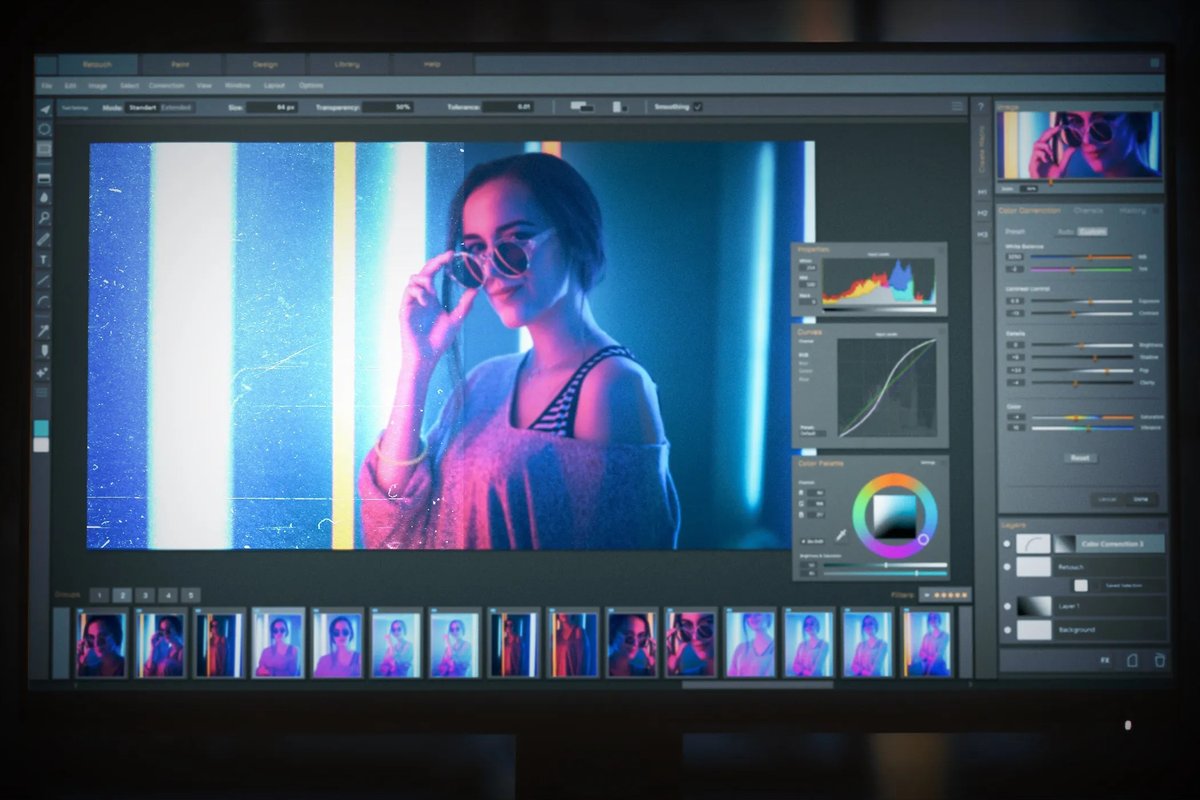
The journey from raw footage to a captivating story doesn't begin with fancy effects; it starts with mastering the Video Editing Essentials: setting up your project correctly and establishing an organized workflow. For aspiring and seasoned creators alike, understanding these foundational elements is what separates a frustrating editing experience from a fluid, creative one, ultimately leading to polished, professional-grade results.
This guide is your blueprint to navigating the crucial initial steps of video editing, transforming common beginner struggles into confident, efficient practices.
At a Glance: Your Editing Fundamentals Checklist
- Organize First: Create dedicated folders and consistent naming conventions before you even open your editing software.
- Match Settings: Align your project's resolution, frame rate, and aspect ratio to your source footage and intended delivery platform.
- Hardware Matters: Ensure your computer has adequate RAM, a capable CPU/GPU, and fast SSD storage for smooth editing.
- Software Smarts: Choose software that fits your skill level and project needs, from beginner-friendly to professional suites.
- Story is King: Focus on purposeful cuts and a clear narrative, using techniques to enhance pacing and engagement.
- Audio is Half the Story: Prioritize clean audio, understanding sample rate, bit depth, and proper mixing levels.
- Color Consistency: Differentiate between color correction (fixing) and color grading (styling) and ensure a consistent look.
- Export for Success: Use the correct codec, bitrate, resolution, and frame rate for optimal quality and playback on your target platform.
Laying the Foundation: Your Project's Blueprint
Before a single cut is made, a well-structured foundation is paramount. Think of this as preparing your workshop; a tidy, organized space makes the creative process far more enjoyable and efficient.
Strategic Project Setup: Matching Your Vision
Your project settings are the DNA of your video. Misaligning them with your source footage or final platform can lead to frustrating issues like choppy playback, pixelated visuals, or incorrect aspect ratios.
- Resolution: This defines the detail of your video. If you're shooting 4K footage but aiming for Instagram Stories, setting your project to a vertical 1080x1920 will ensure your canvas matches your output, allowing you to reframe effectively. For standard web video, 1080p (1920x1080) or 4K (3840x2160) are common.
- Frame Rate (fps): Consistency is key here. Your project's frame rate should match your native footage (e.g., 24fps, 30fps, 60fps) to prevent motion jitter or playback anomalies. If you're mixing different frame rates, decide on a primary one for your sequence and be prepared for potential adjustments.
- Aspect Ratio: This is the width-to-height ratio of your video.
- 16:9: The classic widescreen for YouTube, TV, and cinema.
- 9:16: Vertical video for TikTok, Instagram Reels, and YouTube Shorts.
- 1:1: Square video, often used for social media feeds.
Choosing the right aspect ratio upfront saves significant headaches during reframing and export.
The Art of Order: File & Folder Management
A cluttered media library is a fast track to broken links, lost assets, and a chaotic timeline. Implementing a robust organization system from day one will save you countless hours and potential heartbreak.
- Dedicated Folder Structure: Create a master project folder and within it, subfolders for every media type. A common structure might look like this:
Project_Name_DateFootage(with subfolders likeCameraA_Date,B-Roll,Drone)Audio(Dialogue,Music,SFX)Graphics_Assets(Titles,Logos,Overlays)Exports(Final_Edits,Review_Versions)Project_Files(ProjectName_v1.prproj,ProjectName_v2.prproj)- Consistent Naming Conventions: Give your files logical names. Instead of
IMG_0001.mov, tryScene01_Wide_Take03.movorInterview_JohnDoe_Q1.wav. This makes locating specific shots instantaneous. - Versioning & Backups: Always maintain multiple versions of your project file (e.g.,
ProjectName_v1,ProjectName_v2,ProjectName_FinalCut). Regularly back up your entire project folder to an external drive or cloud service. This safeguards your work against software crashes, hardware failures, or accidental deletions. Trust us, it's not a matter of if you'll need a backup, but when.
The Pillars of Your Visuals: Resolution & Frame Rate Demystified
Beyond project settings, truly understanding resolution and frame rate impacts your video's sharpness, smoothness, and even its file size.
Resolution: The Canvas of Detail
Resolution refers to the number of pixels that make up your image, directly influencing its sharpness and detail.
- 1080p (Full HD): (1920x1080 pixels) Still the standard for most online platforms. It offers a good balance of quality and file size, making it lightweight for streaming and faster to render.
- 4K (UHD): (3840x2160 pixels) Four times the detail of 1080p, 4K has become common for professional projects and high-quality YouTube content. It offers incredible clarity.
- 8K: (7680x4320 pixels) Reserved for high-end productions, requiring serious hardware to edit and display.
- Pro Tip: Even if your final output is 1080p, shooting in 4K gives you significant flexibility. You can crop, zoom, or reframe your shots in post-production without losing noticeable quality in your 1080p export, effectively turning one shot into multiple.
Frame Rate (fps): The Flow of Motion
Frame rate dictates how many individual images (frames) are displayed per second, influencing the perceived smoothness and motion blur.
- 24fps: The cinematic standard. It creates a natural motion blur and a "film-like" aesthetic.
- 30fps: Common for TV broadcasts, online content, vlogs, and news. It feels slightly smoother than 24fps.
- 60fps and higher: Ideal for capturing fast-paced action (sports, gaming) or for creating silky-smooth slow-motion effects.
- Practical Considerations: When mixing footage, prioritize the frame rate of your primary camera. If you want slow motion, you must shoot at a higher frame rate (e.g., 60fps, 120fps) and then interpret that footage to a lower frame rate (e.g., 24fps) in your editing software. For platforms like Instagram Reels and TikTok, 30fps generally performs well due to the fast-paced nature of content consumption.
Your Creative Command Center: Hardware & Software Choices
No matter your skill, the right tools empower your creative flow. Choosing suitable hardware and software is crucial for a smooth, frustration-free editing experience.
Hardware Requirements: Powering Your Edits
Video editing is resource-intensive. Your computer needs to keep up.
- RAM (Random Access Memory):
- Minimum 16GB: For basic 1080p editing.
- 32GB+: Preferable for 4K projects, complex timelines, multiple effects, or multi-application workflows. More RAM means your system can handle more information simultaneously, preventing lags and crashes.
- Processor (CPU): Your CPU does the heavy lifting for rendering, encoding, and many processing tasks.
- Multi-core (e.g., Intel Core i7/i9, AMD Ryzen 7/9): Essential for faster rendering and smoother real-time previews. Look for higher core counts and clock speeds.
- GPU (Graphics Processing Unit): The GPU accelerates visual effects, color grading, and many rendering tasks, offloading work from your CPU.
- Dedicated GPU (e.g., NVIDIA GeForce RTX, AMD Radeon RX): A powerful GPU is critical for modern editing workflows. Look for models with substantial VRAM (8GB+).
- Storage:
- SSD (Solid-State Drive): An absolute must. Use an SSD for your operating system and editing software. The faster read/write speeds dramatically improve application loading, project file access, and preview playback.
- External SSDs: Ideal for storing large video files, project media, and backups. This keeps your internal drive free for software and gives you flexibility. Don't rely solely on traditional HDDs for active editing; they're too slow.
Software Options: Your Digital Toolkit
The market offers a range of video editing software, each with its strengths.
- Professional/Semi-Professional Suites: These are industry powerhouses for comprehensive projects.
- Adobe Premiere Pro (Windows/macOS): A flexible, widely adopted industry standard. It boasts extensive plugin support and seamless integration with other Adobe Creative Cloud applications (like After Effects for motion graphics and Audition for audio). Its multi-camera editing capabilities are top-tier.
- Apple Final Cut Pro (macOS Exclusive): Praised for its user-friendly interface and innovative Magnetic Timeline, Final Cut Pro offers powerful multicam editing, 360-degree video support, and fast performance, especially on Apple Silicon Macs.
- DaVinci Resolve (Windows/macOS/Linux): Initially known for its world-class color grading, Resolve has evolved into a full-fledged professional suite. It now combines robust editing, advanced color grading (node-based), professional audio post-processing (Fairlight), and even visual effects (Fusion) and collaboration tools, with a surprisingly capable free version.
- Entry-Level Software: Perfect for getting started without a steep learning curve.
- iMovie (Free for macOS/iOS): A fantastic starting point for Apple users. It offers a simple interface, pre-built themes, and even 4K support, making it easy to create polished videos quickly.
- Pro Tip: While iMovie is great for beginners, serious editors will eventually outgrow its limitations. Consider it a stepping stone to more advanced software.
- Newer Alternatives (AI-powered): Emerging AI tools can automate specific tasks.
- invideo, Pictory, Synthesia: These platforms leverage AI for tasks like generating videos from text, creating social media content, or synthesizing voiceovers. They can be incredibly efficient for specific use cases but generally lack the granular control of traditional NLEs (Non-Linear Editors).
Crafting Your Story: Essential Editing Techniques
Editing isn't just about technical proficiency; it's about telling a compelling story. Every cut, transition, and effect should serve this narrative purpose.
Precision Cutting & Trimming: The Editor's Scalpel
This is the bread and butter of editing – shaping your raw footage into a coherent sequence.
- Razor Tool/Blade Tool: Used to split a clip at a specific point on the timeline.
- Trim/Ripple Edit: Adjusts the start or end point of a clip, automatically closing any resulting gap or shortening/extending the adjacent clip. This maintains the overall duration of your sequence.
- Slip/Slide Edit:
- Slip: Changes the in and out points of a clip without changing its position or duration on the timeline. It "slips" the content within the fixed duration.
- Slide: Moves an entire clip along the timeline, adjusting the duration of the adjacent clips to accommodate the move, keeping the clip's in and out points fixed.
- Best Practices:
- Cut on Motion: To make cuts feel invisible and smooth, transition between shots while a subject is in motion (e.g., a person standing up, a door opening).
- Cut on the Beat: When editing to music, aligning your cuts with the rhythm or beat drops significantly enhances engagement.
- Purposeful Cuts: Every cut should have a reason. Does it advance the story? Does it change perspective? Avoid overcutting unless it's a deliberate stylistic choice for energy.
The Heart of the Matter: Storytelling Through Edits
This is where the magic happens – turning disparate clips into a cohesive narrative.
- The Power of the Storyboard (or Outline): Even a rough outline or a few notes can guide your editing process significantly. Knowing your beginning, middle, and end, and the key points you want to convey, streamlines decisions.
- Keep it Short & Engaging: Attention spans are fleeting.
- Hook Early: Make the first 5-10 seconds count. A bold statement, a compelling visual, or a question can grab your audience immediately.
- Jump Cuts: Use these effectively to remove dead air, unnecessary pauses, or repetitive movements, compressing time and maintaining energy.
- Cut on Action: This technique makes transitions feel seamless. If someone is reaching for a cup in one shot, cut to a new angle as their hand continues the movement. Combine different shot types (wide, medium, close-up, over-the-shoulder) to add visual interest.
- Selecting Shots with Intent: Don't just use every shot. Choose clips that best convey your message, evoke desired emotions, and advance the story most effectively.
- Trimming, Cutting, Rearranging: Continuously preview your work. Does the pacing feel right? Are there any awkward pauses? Does the story flow logically?
- Transitions & Effects: Less is More: Use transitions like fades, crossfades, or simple wipes sparingly. Their purpose is to enhance storytelling or create a mood, not to distract. Overusing flashy effects can make your video look amateurish.
- B-Roll and Stock Footage: Incorporating b-roll (supplementary footage) can elevate your production value and illustrate points without constantly showing the main subject. Platforms like Pexels, Unsplash, or Shutterstock offer royalty-free stock footage.
- Motion Graphics & Text: Well-designed titles, lower thirds, and animated elements can enhance clarity and engagement. Learn basic keyframing for subtle animations or use pre-made templates for consistency.
- Workflow Efficiency: Embrace Shortcuts!
- Keyboard Shortcuts: This is one of the most impactful ways to speed up your editing. Learn the built-in shortcuts for your software's most-used tools (e.g., Razor, Select, Trim) and consider customizing them for personal efficiency. Muscle memory here is invaluable. You can explore all editing options and software-specific shortcuts in more detail to supercharge your workflow.
The Unsung Hero: Mastering Audio for Impact
Visually stunning video can be ruined by poor audio. Viewers are often more forgiving of less-than-perfect visuals than bad sound. Mastering audio settings is non-negotiable.
Audio Settings: The Technical Foundation
- Sample Rate: This determines how many times per second an audio signal is measured and converted into digital data.
- 44.1 kHz: Standard for music CDs and many audio-only productions.
- 48 kHz: The industry standard for video projects, including YouTube and broadcast.
- Pro Tip: Always set your project and export sample rates to 48 kHz for video work to ensure consistency and avoid potential sync issues or quality degradation.
- Bit Depth (Audio): This dictates the dynamic range and resolution of your audio, essentially how much detail and headroom is captured.
- 16-bit: Limited dynamic range, not ideal for modern professional editing.
- 24-bit: The industry standard for professional video projects. It provides excellent dynamic range and flexibility for post-production mixing.
- 32-bit float: Offers an incredibly wide dynamic range, virtually impossible to clip digitally, making it extremely flexible for post-production, though it creates larger files.
- Pro Tip: If recording audio separately, always aim for 24-bit. This gives you ample "headroom" (space before clipping) and allows for much cleaner mixing and mastering in post.
- Channels:
- Mono: A single audio channel. Best for dialogue and voiceovers, ensuring the sound remains centered and clear in the mix.
- Stereo: Two distinct audio channels (left and right). Ideal for music, immersive sound effects, and environmental recordings where spatial audio is important.
- Pro Tip: Dialogue should almost always be in mono. Ambient sounds, music, and certain sound effects can be stereo to create a richer soundscape.
Mixing & Management: Crafting the Soundscape
- Levels & Headroom: This is critical to avoid clipping (distortion).
- Keep your dialogue consistently around -6 dB to -3 dB.
- Leave more headroom (e.g., -10 dB to -12 dB) for music and sound effects, ensuring they don't overpower the dialogue.
- Use limiters and compressors sparingly and wisely to control dynamic range, but don't rely on them to fix poorly recorded audio.
- Pro Tip: Regularly check your audio mix with both headphones and different speakers (e.g., laptop speakers, studio monitors) to ensure it sounds balanced across various playback environments.
- Soundtrack & Management:
- Royalty-Free Music: Always use royalty-free music and sound effects to avoid copyright strikes and legal issues. Explore reputable libraries like Epidemic Sound, Artlist, or storyblocks. AI music generators are also emerging as a new alternative.
- Crisp Voiceovers: If recording voiceovers, use a good quality microphone in a quiet, acoustically treated space. Ensure your voiceover levels are balanced against any background music for optimal clarity.
Painting with Light: Understanding Color Management
Color is a powerful storytelling tool, influencing mood, emotion, and visual continuity. Getting color right early in your workflow saves immense time later.
The Technicalities of Color: Space & Depth
- Color Space (Gamut): This defines the range of colors your project can capture, process, and display.
- Rec. 709: The industry standard for HD video (e.g., YouTube, broadcast TV). Most consumer cameras and monitors are designed for this.
- DCI-P3: A wider color gamut used in digital cinema.
- Rec. 2020 (HDR): An even wider gamut designed for High Dynamic Range (HDR) workflows, offering richer colors and brighter highlights.
- Pro Tip: Match your sequence color space to your intended delivery format. If you shot in a LOG profile (which records a flat image for maximum grading flexibility), you'll need to convert it to Rec. 709 (or your target color space) using a LUT (Look Up Table) or a color transform before beginning serious editing and grading.
- Bit Depth (Color): Refers to the number of shades of color information stored per pixel. More bits mean more subtle transitions between colors, reducing banding.
- 8-bit: Limited color information, making it prone to banding (visible steps in gradients) when heavily graded.
- 10-bit: Offers a significantly greater range of colors (over a billion) and is the best balance for modern workflows, providing much more flexibility for color correction and grading without banding.
- 12-bit or higher: Typically reserved for RAW or high-end cinema projects, offering maximum color data.
- Pro Tip: If your camera supports 10-bit or higher recording, ensure your project settings and graphics card can also handle 10-bit to maintain this quality throughout your workflow and prevent banding in the final output.
White Balance & Beyond: Correction vs. Grading
- White Balance (WB): Critically important to get right in-camera. Incorrect white balance can make whites appear blue, orange, or green, throwing off all other colors.
- Use your software's white balance tools to adjust mismatched clips, but always aim to fix it in-camera first.
- A gray card shot at the beginning of your footage provides a perfect reference point for accurate white balance adjustments in post.
- Shooting in LOG or RAW formats offers the most flexibility for correcting white balance post-capture.
- Pro Tip: Fix white balance and achieve consistent exposure across all your clips before you begin any stylistic color grading. This is the "correction" step.
- Color Correction vs. Color Grading: These terms are often confused but serve distinct purposes.
- Color Correction: The technical process of adjusting brightness, contrast, and color balance to make your footage look natural, consistent, and accurate. It aims to fix issues and ensure all clips match.
- Color Grading: The artistic process of applying a specific style, mood, or "look" to your footage (e.g., warm and nostalgic, cool and futuristic). This is where you inject personality into your visuals, building on a solid color-corrected foundation.
The Grand Finale: Flawless Export Settings
You've poured hours into your project; don't let it fall apart at the last hurdle. Incorrect export settings can undo all your hard work, resulting in blurry, choppy, or oversized files.
Key Export Parameters:
- Resolution & Frame Rate: Always export at the same resolution and frame rate as your project settings and source footage. If your project is 1080p at 30fps, export 1080p at 30fps.
- Common Online Output: 1080p at 24fps, 30fps, or 60fps are standard for platforms like YouTube and Vimeo.
- Pro Tip: Avoid changing the frame rate during export (e.g., exporting a 24fps project as 30fps) unless you fully understand the implications, as it can introduce motion artifacts.
- Codec & Container: These define how your video data is compressed and packaged.
- H.264 (MP4 container): The absolute workhorse for online video. It offers an excellent balance of quality and small file size and is universally supported across virtually all devices and platforms.
- H.265/HEVC (MP4 or MOV container): A newer, more efficient compression standard than H.264. It delivers similar quality at smaller file sizes but requires more processing power to encode and decode, meaning slower export times and potentially less universal support on older devices.
- ProRes / DNxHR (MOV container): These are "mezzanine" or "intermediate" codecs. They offer extremely high quality and minimal compression, ideal for professional deliverables, archiving, or when you need to send files to another editor for further work. They result in very large files but preserve maximum quality.
- Pro Tip: For most online distribution, stick with H.264 in an MP4 container. Use ProRes/DNxHR when clients specifically request it or for archival master files.
- Bitrate: This is the amount of data processed per second, directly influencing file size and visual fidelity. Higher bitrate = larger file, better quality.
- General Guidelines:
- 1080p: 10-20 Mbps (Megabits per second)
- 4K: 40-80 Mbps
- Always consult platform-recommended upload bitrates (e.g., YouTube provides detailed guidelines).
- Pro Tip: Use Variable Bitrate (VBR), 2-Pass encoding. This process analyzes your video twice, allocating more bitrate to complex scenes and less to static ones, resulting in the best quality-to-size ratio.
- Audio Export:
- Standard: 48 kHz sample rate, 24-bit bit depth, Stereo channels.
- For dialogue-heavy content where file size is critical, you might consider mono audio.
- Presets: Most editing software offers built-in export presets for popular platforms like YouTube, Vimeo, or social media. These are a good starting point, but always double-check the settings against your source footage and project requirements.
- Pro Tip: Once you find a set of export settings that work perfectly for your common deliverables, save them as a custom preset. This ensures consistency and speeds up future exports.
Beyond the Basics: Continuous Growth & Actionable Next Steps
Mastering the essentials of video editing is not a destination, but a journey. The landscape of tools and techniques constantly evolves, but your fundamental understanding of project setup, workflow, and core principles will remain your strongest asset.
Here's how to keep sharpening your skills:
- Practice Relentlessly: The best way to learn is by doing. Take on small personal projects, experiment with new techniques, and challenge yourself.
- Analyze & Learn: Watch your favorite videos and try to dissect the editing. How do they use cuts? What's the pacing like? How does the sound design contribute?
- Stay Updated: Follow industry blogs, YouTube channels, and online communities for tutorials, tips, and news on new software features or hardware.
- Seek Feedback: Share your work with trusted friends, fellow editors, or online communities. Constructive criticism is invaluable for growth.
- Build a Portfolio: Even if you're not planning a career in editing, having a collection of well-edited personal projects demonstrates your capabilities and helps you refine your style.
Remember, every professional editor started exactly where you are now. By focusing on these video editing essentials, you're building a strong, trustworthy foundation that will empower you to tell captivating stories, efficiently and effectively, for years to come.